Shop Addresses · Beginner · 45 minutes
How to install WooCommerce — The Shop's Address Decisions Are the Ones You Cannot Undo
Installing the software takes ten minutes; deciding whether the shop lives on your main name or on a hostname of its own is the part that follows you for years.
The short answer
Settle the address before you run the wizard: whether the shop is a path on your existing name or a hostname of its own, which hostname the certificate covers, and which address the order emails will be sent from. Those three decisions attach themselves to every order, receipt and gateway record the shop ever produces.
Then install WooCommerce onto a healthy WordPress, run the setup wizard, add one real product, connect a gateway in test mode, and push a single order all the way through.
Forty-five minutes at beginner level. The software is forgiving; the address is not.
By the Hosting & Domains team · Reviewed 24 August 2026
Beginner
Level assumed
45 minutes
Time to allow
5
Stages in the guide
24/7
Desk cover
A shop is the application where an address change hurts most. Customers have receipts with URLs on them, gateways have callback hostnames registered, and confirmation emails have a sending domain baked into their delivery reputation.
None of that is a reason to agonise. It is a reason to make the decision deliberately in the first forty-five minutes rather than discovering it in month nine.
Everything after the address is ordinary WordPress work, and reverses from a backup.
Path, subdomain, or its own name
A path — yourdomain.com/shop — is the default. One hostname, one certificate, one set of signals, and customers stay on the name they already trust. A subdomain — shop.yourdomain.com — makes sense when the shop runs on separate software or needs to be isolated from the main site, and it costs one DNS record and one more hostname on the certificate.
A separate registration is rarely right for a shop. It splits trust at exactly the moment a customer is deciding whether to type a card number, and it adds a renewal you must never forget. If you do it, put auto-renew on immediately.
Certificate coverage is a hostname question
Whatever hostname the checkout runs on must have a valid certificate, and browsers are absolute about this at the moment a card field appears. Free SSL comes with every plan here and reissues before the old certificate lapses, but it covers the hostnames configured on the account — so add the subdomain before you start selling from it, not afterwards.
Mixed content is the related trap. A checkout served over HTTPS that pulls an image or a script over HTTP will show a broken padlock, and a broken padlock on a payment page costs orders in a way no analytics report will explain to you.
The shop sends more email than the site ever did
Order confirmations, shipping notices, password resets, invoices. All of it sends from your domain, all of it is transactional, and all of it is subject to your SPF record, your DKIM signature and your DMARC policy. A shop is where weak mail records stop being theoretical.
Set the From address to a real mailbox on your own name rather than to wordpress@ a hostname nobody has authorised. Confirm SPF covers whatever is actually sending, DKIM is signing, and you know what your DMARC policy tells receivers to do with a failure. Mailboxes here answer at the name you hold, with SMTP available to any client, so the shop has real credentials to authenticate with.
Then the software, in the ordinary way
Start from a healthy WordPress: current PHP 8.x, a maintained theme, and a plan with room to spare. WooCommerce inherits whatever it lands on, and diagnosing the platform at the moment you meant to start selling is a poor use of an afternoon.
Install it from the plugin directory or through Softaculous, work through the wizard — address, currency, tax handling, shipping — then add one genuine product with its price, images, stock figure and description. A real product exercises every screen the wizard just configured and exposes gaps while the shop is still private.
Connect Stripe or PayPal in test mode, then buy your own product. Watch the order appear, the stock drop and the confirmation email arrive. That one loop proves the shop far better than reading the settings back to yourself.
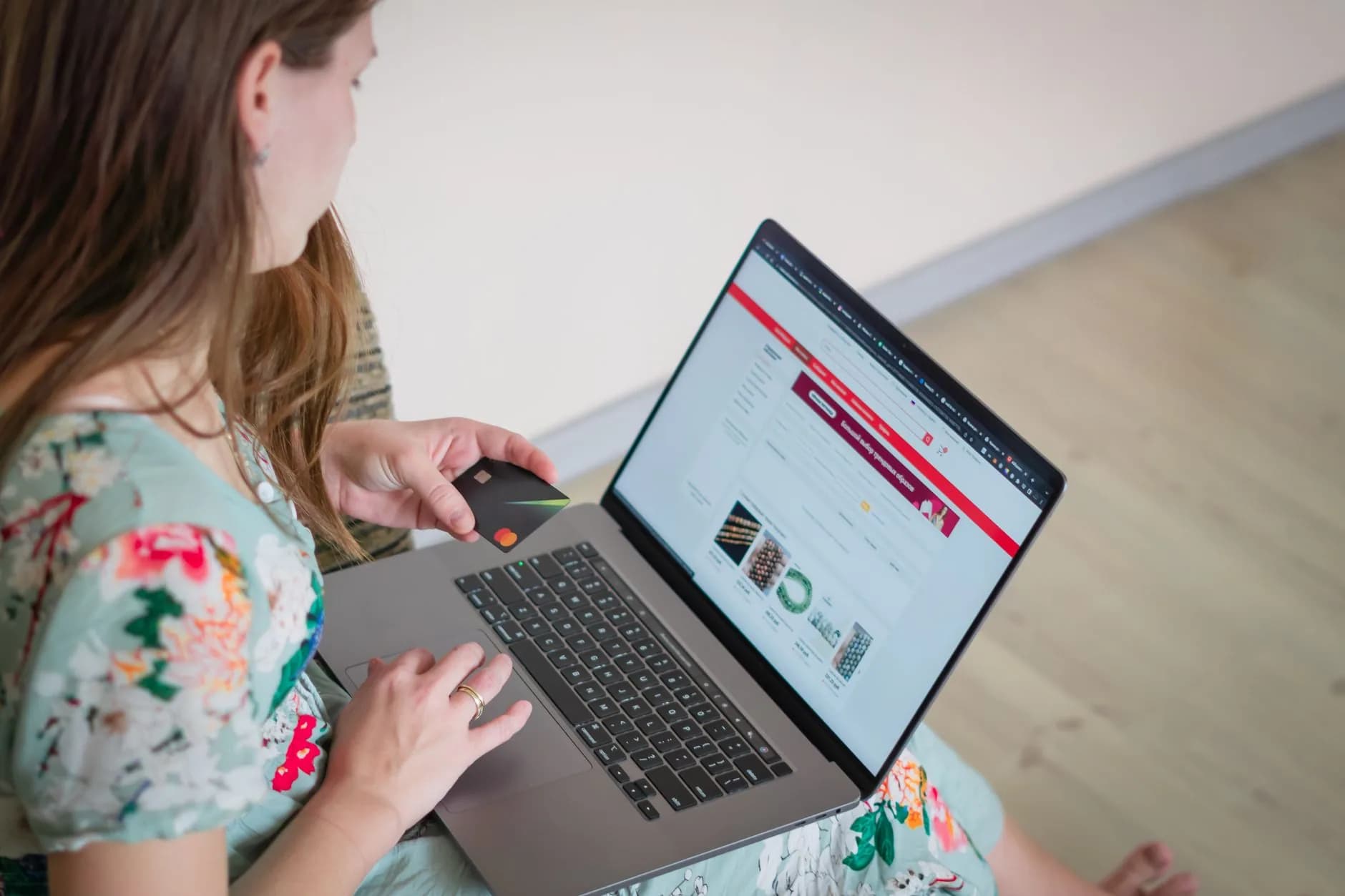
Hostnames, certificates and mailboxes on one account
Subdomains, addon domains, the certificates covering them and the mailboxes sending from them are all configured in the same panel, alongside the registration itself. On a shop that matters, because the checkout hostname, its certificate and its sending address have to agree with one another.
Softaculous installs WordPress and 400+ other applications in one click, WordPress Toolkit handles the updates, and Turbo Store and above carry AccelerateWP and Redis for the uncacheable traffic a shop generates.
- Free SSL on every plan, reissued before the old one lapses
- Mailboxes answering at the name you hold
- Records and registration behind a single login
- Staging copies, for trying a change before it reaches the live name
Why Hosting & Domains
Standard on every plan
The address decided first
Path, subdomain or its own name, chosen before the wizard runs — because receipts, gateway records and email reputation all attach to it.
Certificate coverage checked
The checkout hostname must be on the certificate before you sell from it. A padlock warning on a card field costs orders silently.
Transactional mail taken seriously
A shop sends far more email than a brochure site, and SPF, DKIM and DMARC stop being theoretical the moment order confirmations start.
A healthy base before the plugin
Current PHP 8.x, a maintained theme and room on the plan, so you are not diagnosing the platform on your first trading day.
One real product, not a placeholder
A genuine product with price, images and stock exercises every screen the wizard configured while the shop is still private.
One order, end to end
Order created, stock decremented, confirmation delivered. The full loop in test mode proves more than any settings review.
Quick Start
Order placed to site online
- 1
Choose the shop's hostname
A path on your existing name unless there is a specific reason otherwise. A subdomain costs one DNS record and one more hostname on the certificate; a separate registration splits trust at the checkout.
- 2
Confirm the certificate covers it
Add the hostname to the account and check the padlock before any card field exists. Then check for mixed content, because an http asset on an https checkout breaks the padlock.
- 3
Fix the sending address and check the mail records
Send from a real mailbox on your own name. Confirm SPF covers what is sending, DKIM is signing, and you know what your DMARC policy instructs receivers to do.
- 4
Install onto a healthy WordPress and run the wizard
Current PHP 8.x, a maintained theme, room on the plan. Then WooCommerce from the plugin directory or Softaculous, and six wizard screens: address, currency, tax, shipping.
- 5
Add a real product and push one test order
One genuine product, a gateway in test mode, then buy it yourself. Watch the order appear, the stock drop and the confirmation email actually arrive.
Built In
Fitted to every plan
- Free SSL on every plan, reissued before the old one lapses
- Mailboxes answering at the name you hold
- Nameservers, contacts, privacy and locks in one place
- Staging copies, for trying a change before it reaches the live name
- WordPress and 400+ other applications installed in one click
- WordPress Toolkit, with updates handled for you
- NVMe SSD storage on every tier, not only the expensive ones
- A daily copy taken, with restores you run yourself
- A desk staffed every hour of every day
- Thirty days' money back on hosting plans, seven on reseller
Frequently Asked
Questions we field again and again
Should the shop sit on a subdomain or on my main name?
On your main name, as a path, unless something forces otherwise. A path keeps customers on the name they already trust, uses the certificate you already have, and consolidates every signal onto one hostname. A subdomain is the right answer when the shop runs on separate software or must be isolated, and it costs one DNS record plus one more hostname on the certificate. Reserve a separate registration for cases where the shop is genuinely a different brand.
Why do my order confirmation emails go missing?
Usually because they are sent from an address your domain has not authorised — something like wordpress@ a server hostname — so SPF fails and your own DMARC policy tells the receiver to reject or quarantine. Set the From address to a real mailbox on your own name, send through authenticated SMTP, and confirm SPF covers the sending platform and DKIM is signing. Order mail is transactional and there is no second chance at it.
Do I need a particular plan for WooCommerce?
It runs on standard cPanel hosting, but a shop works harder than a brochure site: more database traffic, more uncacheable pages, more images. Turbo Store and above carry AccelerateWP and Redis for exactly that load. Begin on whatever you have and move up when the order volume, rather than your optimism, calls for it — plan changes apply to the account in place.
How many products will WooCommerce handle here?
With NVMe storage and object caching underneath, catalogues running to tens of thousands are unremarkable. What strains first is uncached traffic — signed-in shoppers and checkout — rather than the row count. Watch response times during a busy hour instead of the product total.
Keep reading
How to Set Up Domain Forwarding
Point a name at somewhere else entirely, and know which layer the forwarding lives in.
WooCommerce Hosting
WooCommerce hosting with Redis and the caching layer already built into the server.
Domain Names
Search, register and transfer names, with the auth code within reach when you want to move.
Changing provider? Work through this checklist beforehand.
A straightforward running order for a migration your visitors never spot: which files travel first, how to bring the mail across without dropping a single message, the right moment to repoint DNS, and the two errors that sit behind almost every outage we get called in to fix.
Get the shop's address right once.
Free SSL on every hostname, mailboxes at the name you hold, and a desk that answers at any hour.
View WooCommerce Hosting plans